Wi-Fi has become one of those things that we take for granted. We don’t notice it when it works, but when it works poorly (or not at all), we definitely notice.
Slow or failure-prone Wi-Fi connections are frustrating. When the office Wi-Fi doesn’t work, meetings and decisions get postponed, and customers become unhappy. When the school Wi-Fi is shabby, precious minutes, of which we barely seem to have enough in class, are wasted. With this in mind, a professional Wi-Fi network setup is invaluable.
Since the Wi-Fi network is so important for everyday activity, choosing and deploying the best devices – routers, access points, range extenders – can feel overwhelming. The field is riddled with tech jargon and marketing terms, and it seems like you can’t get a straightforward answer about anything.
It doesn’t help that sometimes there is no simple answer. But straightforward? We think we’ve got that covered! Without further ado, here is our list of the most frequent questions about having a Wi-Fi installation – and our most straightforward answers!
The Basics: Standards, Routers, Access Points
What Is Wi-Fi?
Wi-Fi is the name of a wireless networking technology which allows various devices – laptops, tablets, phones, security cameras or various other gadgets – to communicate without using cables. A Wi-Fi network is just like an Ethernet network, but cable-free.
There are several standards in the Wi-Fi family, and not all of them are compatible with each other.
Is Wi-Fi Entirely Cable-Free?
There are no data cables between devices and the Wi-Fi access point, but Wi-Fi routers and access points still need to be connected to the rest of your network, or at the very least to your ISP. This is done via a wired connection. All these devices need to be powered up, too, so they need power cables.
However, some, if not all, of these cables can be deployed through ceilings or underneath floors. Structured cabling standards make provisions for using Wi-Fi access points and routers, so they are easy to integrate into your organisation’s network.
How Fast Is Wi-Fi?
In raw numbers: depending on the particular standard you use, such as 802.11n or 802.11ac, the maximum aggregated throughput of a Wi-Fi router ranges between 11 Mbps and 3.46 Gbps. In other words, it can handle up to 3.46 Gbps of traffic going through the router, but this is only a theoretical limit. In practice, peak performance is lower.
In practical terms, a well-designed Wi-Fi network can match the performance of a wired network for typical office tasks, general browsing or entertainment.
What are all these 802.11a/b/g/n/ac Acronyms?
Several Wi-Fi generations remain in use. Wi-Fi 4 (802.11n) and Wi-Fi 5 (802.11ac) are common in older estates, while Wi-Fi 6/6E (802.11ax) and Wi-Fi 7 (802.11be) support newer deployments. Real throughput and coverage depend on the access point, client devices, band, channel plan, interference, building materials and enabled features; the standard alone does not establish a fixed range.
What’s the Difference between a Wi-Fi Access Point and a Range Extender?
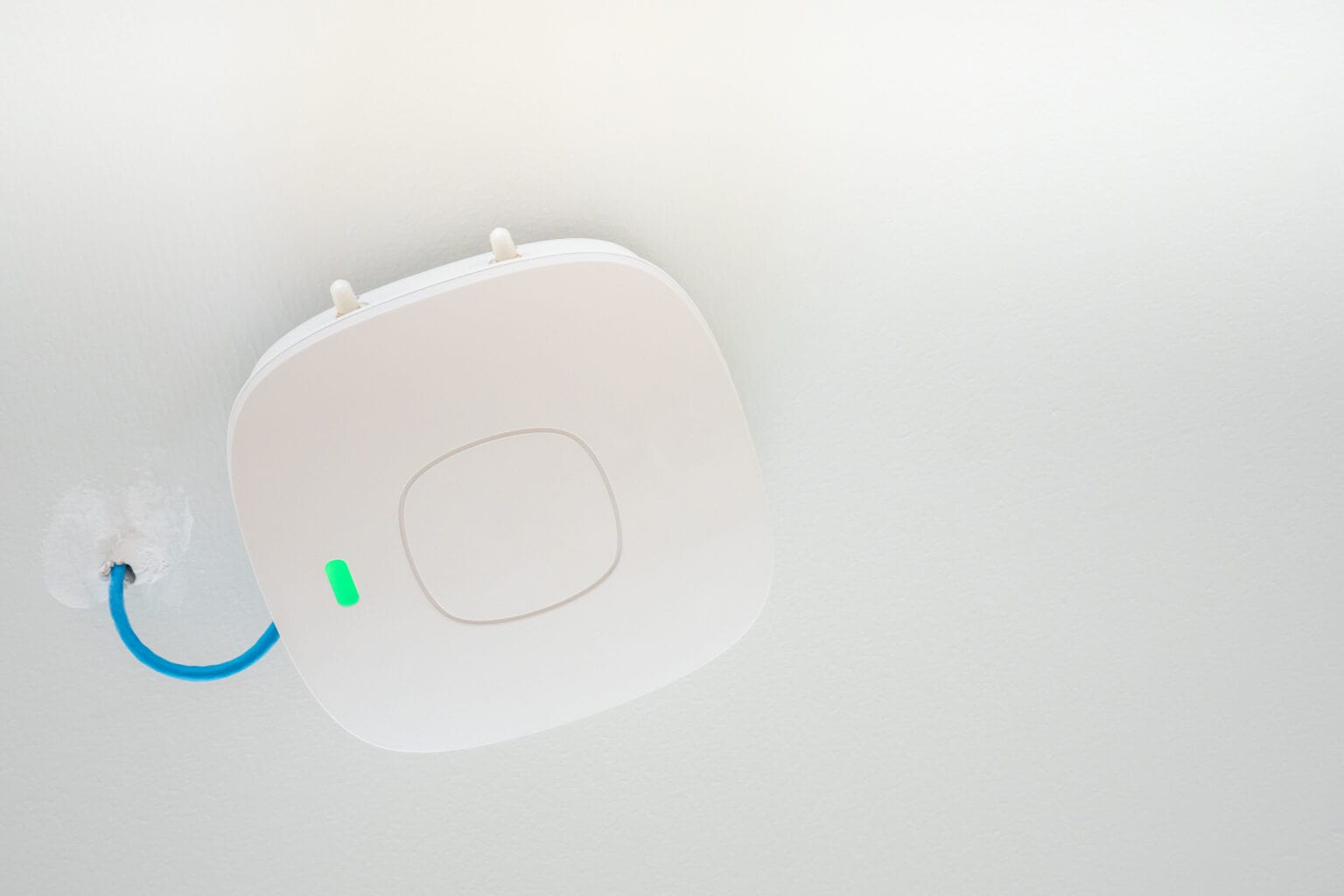
A Wi-Fi AP is an autonomous device. It broadcasts its own radio signal and handles its own clients.
In contrast, a range extender (sometimes called a booster or a repeater) simply boosts the signal coming from access points and devices so that they can communicate over longer ranges.
What’s the Range of a Wi-Fi Network?
There is no theoretical limit to the range of a network. Wi-Fi networks that span an entire 40-story office building, or an entire sports complex, are not unheard of.
The range of a single router or access point depends on the 802.11 standard you use. Ballpark figures range between 60-200 ft. indoors and 300-800 ft. outdoors. This range can be extended using access points and/or repeaters, up to any distance, as long as APs can still be plugged into a router. In practice, Wi-Fi networks are, at most, campus-wide. For longer distances, you typically bridge local networks together through other means, such as VPN, leased lines, or free-to-air connections.
How Many Devices Can I Connect to a Wi-Fi Network?
Wi-Fi capacity is finite. The number of usable client devices per access point depends on the AP and client capabilities, bands, channel plan, airtime demand, applications, backhaul and required service level. Size the design from the agreed concurrent-device and application requirements rather than a generic device limit.
What’s a Mesh Network?
A mesh network (the technical term is Wireless Mesh Network or WMN) is a wireless network in which access points can communicate not only with a central router through a wired connection but also with each other through wireless links.
Mesh networks can offer better resilience and coverage than traditional Wi-Fi systems, but they tend to be more expensive and are not as popular.
Wi-Fi Network Management
What Devices Do I Need, and How Many?
A small office may use an integrated router or separate access points and routing, but the equipment count cannot be set reliably from room or device totals alone. Account for concurrent users, applications, construction, interference, security, resilience and growth, then validate the proposed design through an appropriate survey.
What Is a Wi-Fi Site Survey and Why Is It Necessary?
A Wi-Fi (or radio) site survey is a procedure through which one can build a radio profile of your premises. This profile shows how radio signals propagate through the premises and helps determine access-point placement against defined coverage, signal-quality, capacity and application targets.
A site survey is necessary because the propagation of radio signals is very difficult to predict. While computer simulations can be used to get a rough initial idea of the RF profile, the only way to ensure proper coverage is to take measurements.
Is a Wi-Fi Network Secure?
Modern business Wi-Fi should use the strongest security supported by the managed access points, clients and authentication design. WPA3-Enterprise is appropriate for many new enterprise deployments, with WPA2-Enterprise or transition arrangements retained where compatibility requires them. Wireless authentication is only one layer: segmentation, identity management, certificate or credential controls, firmware maintenance, monitoring and secure configuration remain important.
Can I Deploy Several Wi-Fi Networks?
Yes. Wi-Fi protocols are designed to allow several networks to coexist to some degree.
What Is a Guest Network?
A Wi-Fi guest network is a network section that enables only limited access to an organisation’s network. For example, a company may use it to allow visitors and customers to connect to the Internet, but not access computers in the company network.
Some Wi-Fi routers and access points have native support for this feature. Where it is not available, it can be emulated by using separate access points for a separate Wi-Fi network.

Where Should I Place a Router or Access Point?
Ideally, you want to place your router or access point at a high point, such as on the ceiling or on top of a tall bookshelf. It should be placed away from large metallic objects and as close as possible to the centre of the area it’s intended to service.
Is a Router with more Antennas Faster?
That depends. Modern routers support a technology called MIMO (Multiple Input, Multiple Output), which enables them to use several radio signals at a time to communicate with one (or more) devices.
SU-MIMO (Single-User MIMO) uses multiple radio streams to communicate with a single device and is supported starting with 802.11n. MU-MIMO (Multiple User MIMO) uses multiple radio streams to communicate with several devices and is supported starting with 802.11ac.
Furthermore, some Wi-Fi routers use more than one radio module, so that they can work in both the 2.4 GHz and 5 GHz regions of the spectrum, effectively managing two wireless networks at a time.
In either of these cases, a router with more antennas can be faster. A client device that also supports MIMO can have a higher throughput, or the AP can service more devices at the same time.
What Is Wi-Fi Cloud Management?
Some wireless APs can be managed through a cloud-based system. These systems aggregate status and performance information from any number of access points, allow you to configure and synchronise an organisation’s APs, and can give detailed usage reports.
If you have a large network, with more than 4-5 APs and tens or hundreds of users and devices, a cloud management system can be very useful.
Working with Wi-Fi Network Setup Professionals
Concerned about setting up your Wi-Fi?
Working with a Wi-Fi network setup professional is of utmost importance for several compelling reasons. Firstly, these experts possess in-depth knowledge and experience in designing, configuring, and optimising Wi-Fi networks. They stay up-to-date with the latest industry trends and technological advancements, ensuring that your network is built using the most efficient and secure practices available. This expertise extends to identifying and resolving potential issues before they become major problems, saving you valuable time and resources in the long run.
Professional Wi-Fi network setup ensures that your system is tailored to your specific needs and requirements. They conduct thorough site surveys to determine the optimal router placement, strategically positioning access points to eliminate dead zones and maximise coverage throughout your premises. This level of customisation ensures a reliable and robust network that can handle the demands of modern internet usage, such as streaming, online gaming, and multiple connected devices.
Security is another critical aspect that professionals prioritise. They implement encryption protocols, strong passwords, and other security measures to safeguard your network against unauthorised access and potential cyber threats. With the increasing prevalence of cyberattacks, having a secure Wi-Fi network is essential to protect sensitive data and maintain the privacy of your personal or business information.
By collaborating with Wi-Fi network setup professionals for setting up Wi-Fi, you also gain access to ongoing support and maintenance services. They can remotely monitor your network’s performance, proactively identify any issues, and provide timely updates and patches to keep your system running smoothly. This proactive approach minimises downtime and ensures that your network remains stable and reliable.
Partnering with a Wi-Fi network setup professional offers a wide range of advantages, including expertise, customisation, security, and ongoing support. Whether for residential or business purposes, their services provide peace of mind, knowing that your network is in capable hands, leaving you free to focus on other priorities without worrying about technical complexities or network hiccups.
Got more questions? We’d be happy to answer them! Give us a call or drop us a line anytime.
Related topics: Corporate Wireless Solutions, Wi-Fi Black spots, Point to point Wi-Fi, What’s an Ethernet cable



Written by
Wayne founded ACCL in 1997 and has led more than 28 years of project delivery, helping organisations design, install and modernise the network infrastructure behind reliable connectivity, office moves and refurbishments. His experience spans copper cabling, fibre backbones, data centre infrastructure, Wi-Fi, CCTV and access control. About ACCL